Please log in to your account first by going to https://app.immunearch.com . You should be brought to a screen like this, following a successful login:
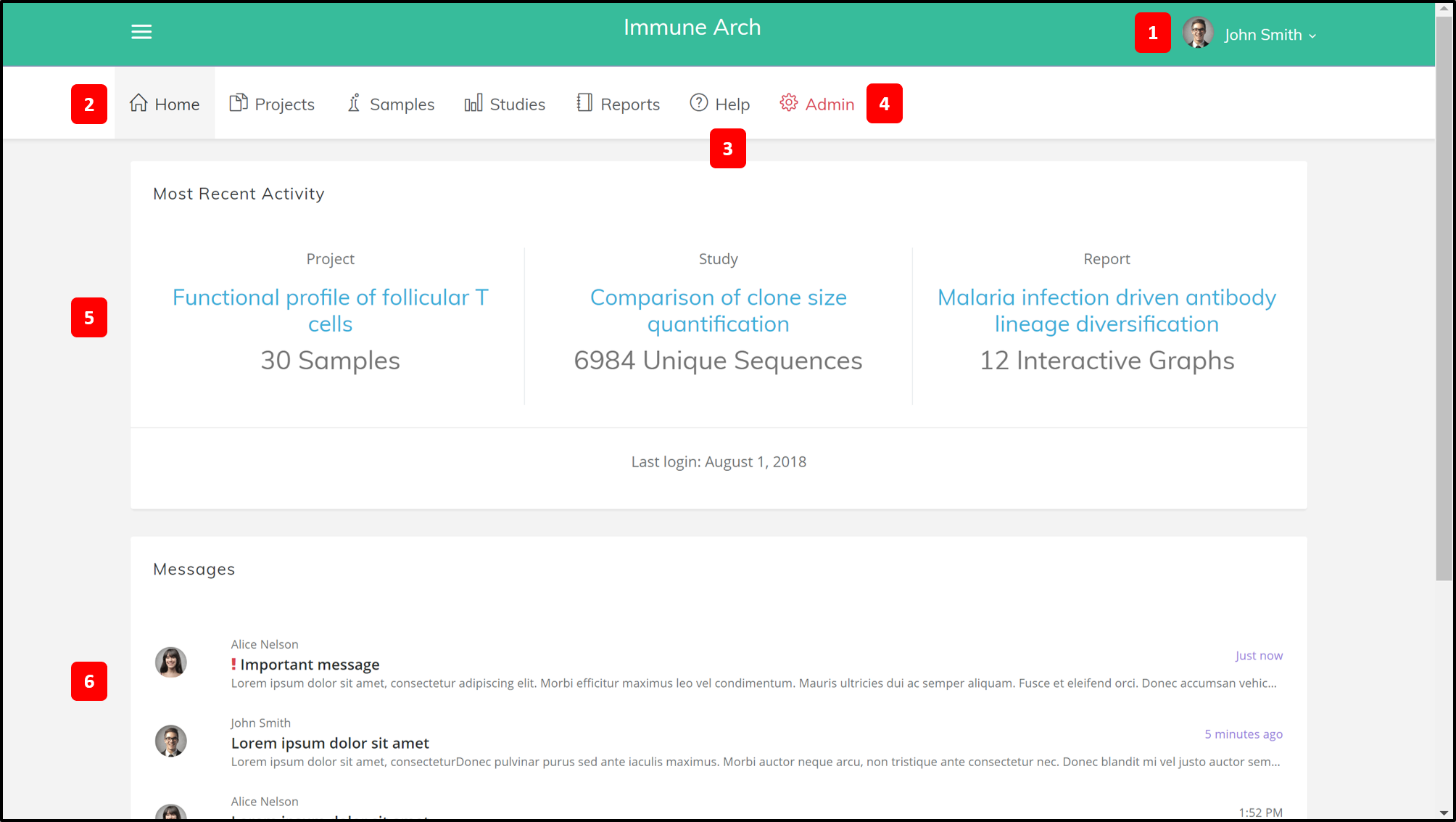
1. User Profile
Your profile includes your profile picture and your name. A drop down menu next to your name allows you to edit your profile, change your default project settings, manage access, and log out of the site.
2. Menu / Navigation bar
The navigation bar is where you can reach all pages (functions) of the site. On the navigation bar, there are 6 tabs: Home, Projects, Samples, Studies, and Reports. Clicking on these tabs will bring you to their respective pages.
3. Access Help
Depending on which page you are on, clicking on the help button redirects you to the corresponding help document.
4. User and order management
Only the administrator can see the admin menu, shown in red. Clicking on it will show two submenus: "Users" and "Orders". Selecting a submenu will bring up the corresponding page.
The user page consists of two sections: the institution profile and user list. As an adminstrator, you can edit the information and add, remove, or organize user accounts.
The order page allows you to review the order history as well as place new orders for library kits and sequence services.
5. Most Recent Activity
The center of the page shows you your most recent activity: the project, the study, and the report you have been working on. It also shows some basic statistics.
6. Message system
A list of messages, with the most recent at the top, is shown at the bottom of the page. You can contact the account manager or the sales representative through our messaging system.